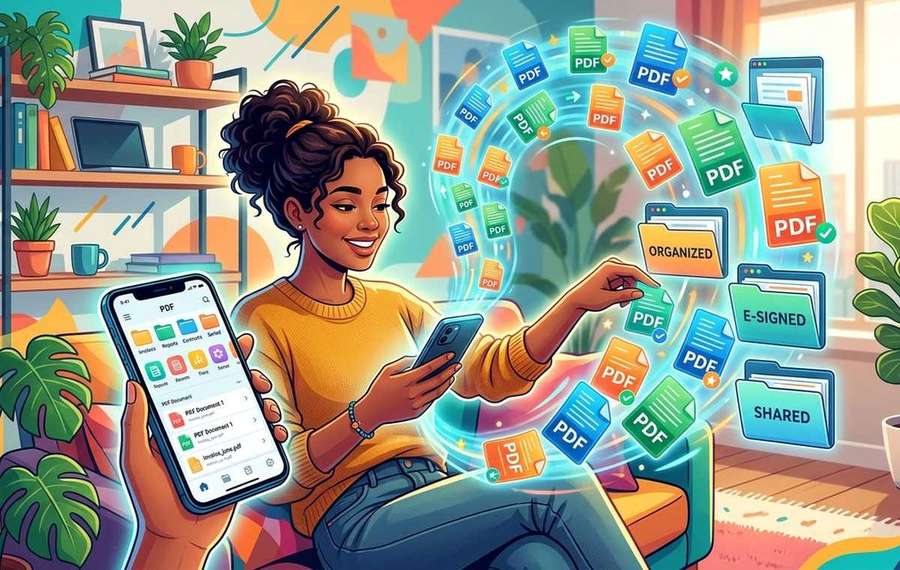
Summary of Managing PDF Documents From Your Smartphone Without Losing Your Mind
- Handle contracts, invoices, and reports on your phone without touching a laptop.
- The PDF format was designed to look identical regardless of the device or operating system viewing it.
- The original design was built with print in mind, which made PDFs feel clunky on a touchscreen for years.
Your phone buzzes. It's a contract needing a signature by end of day, an invoice requiring approval, or a 40-page report dropped in your inbox at 7 AM. You're not at your desk. You're between meetings, standing in line, or sitting in a coffee shop with nothing but your phone and a half-drunk latte. The reflex to say "I'll deal with this when I get back to my laptop" is understandable, but modern smartphones have made that delay completely unnecessary. PDF management on mobile has grown up fast, and once you know the right moves, your phone handles documents just as well as any desktop.
You already have everything you need to manage PDFs on your phone.
- PDFs can be opened, read, and annotated without installing heavy software or creating an account.
- Large files can be compressed to email-friendly sizes in under a minute using a browser-based tool.
- Contracts can be signed and returned legally without printing, scanning, or finding a desk.
Why PDFs Keep Landing on Your Phone
The PDF format was designed to look identical regardless of the device or operating system viewing it. That consistency is exactly why businesses, legal teams, and clients default to it. A contract sent as a PDF looks the same on a colleague's Windows laptop as it does on your iPhone. No formatting surprises. No missing fonts. It just works.
The original design was built with print in mind, which made PDFs feel clunky on a touchscreen for years. That gap has closed significantly. Browsers on Android and iOS now render PDFs natively, and a focused set of web tools handles everything beyond basic viewing: compression, conversion, and signing.
The question is no longer whether your phone can handle PDFs. It's knowing which tool to reach for and when.
What Most People Get Wrong About Mobile PDF Work
What this means for Managing PDF Documents From Your Smartphone Without Losing Your Mind
Most people try to do everything through a single bloated PDF app or their email client. The email client displays the PDF but can't edit it. The PDF app asks for a subscription before it lets you do anything useful. Both lead to frustration.
A smarter approach is treating different PDF tasks as separate jobs, each handled by a lightweight tool built specifically for it. Here is what that breakdown looks like in practice:
- Reading and reviewing- Your phone's native browser or built-in Files app handles this without extra software.
- Annotating or highlighting- The Markup tool in iOS or a simple Android annotation app covers most needs.
- Compressing before sending- A dedicated online compression tool removes file bloat without touching your content.
- Converting to an image- Sometimes a single PDF page needs to become a shareable image for a chat or email.
- Signing- An e-signature tool is faster than printing, signing, scanning, and re-attaching.
Matching the right tool to each task is what keeps mobile document work from becoming painful.
Shrinking That Attachment Before You Hit Send
Nobody wants to receive a 22 MB PDF of a three-page invoice. File size matters more on mobile because many email servers reject attachments over 10 or 25 MB, and recipients on cellular data plans will feel the drag. Large PDFs often carry embedded high-resolution images, unused metadata, and duplicate fonts that add bulk without adding value.
Before you forward that report or return a signed contract, take 30 seconds to compress PDF files using a browser-based tool. You upload the file, choose your compression level, and download a smaller version. No app to install. No account required. The result is typically 40 to 70 percent smaller than the original, with text and images remaining perfectly readable.
This step matters especially when you're on a cellular connection rather than fast office Wi-Fi. Smaller files upload faster, avoid server rejections, and create a more professional impression than a bloated attachment bouncing back to your inbox.
Turning a PDF Page Into Something Shareable
Not every PDF needs to stay a PDF. If a colleague sends a presentation deck and you want to drop one chart into a team chat, or you need to share a single page on a platform that only accepts images, converting is the answer.
This situation comes up constantly in mobile workflows. Your group chat is asking for the summary slide from last week's report. Attaching the full 30-page deck is unhelpful. Converting that one page using a PDF to JPG converter takes under a minute and gives you a clean image that pastes anywhere. WhatsApp, Slack, email body, it doesn't matter. An image file goes places a PDF cannot.
Browser-based conversion tools handle this well on a phone. Open the tool, upload the PDF, and the converter returns individual images for each page. You pick the one you need and share it directly from your downloads folder.
Closing a Deal From a Coffee Shop
Here is the scenario: you just stepped out of a meeting, the client says the contract is already in your inbox and they'd like it back today. In the past, that meant finding a printer, a pen, a scanner, and eventually a desk. Now it means opening your phone's browser.
E-signatures have become one of the most practical mobile document tools available. Under legislation like the Electronic Signatures in Global and National Commerce Act, digital signatures in the United States carry the same legal weight as ink on paper. Similar laws apply across the European Union, the UK, Canada, and Australia.
To sign PDF documents on your phone, you open the tool in your browser, upload the contract, place your signature where it belongs, and download the signed version. You then attach it to your email reply or share it directly. The whole process takes about two minutes. The client receives their document. The deal moves forward. You still have time to order another coffee.
The PDF Situations That Actually Cause Trouble
Some document situations are genuinely more complicated on mobile. Knowing which ones to expect saves a lot of frustration.
- Multi-signature contracts- Documents that need signatures from several parties work better through a proper e-signature workflow than through a chain of email attachments.
- Fillable forms- PDFs with interactive text fields don't always behave well in mobile browsers. A dedicated PDF reader app with form support handles these better.
- Password-protected files- You need the password before any browser-based tool can open the document. Have it ready before you try to compress or convert.
- Scanned documents- A PDF created by photographing a physical page is essentially an image inside a PDF wrapper. Text in scanned PDFs isn't selectable unless the file was processed with OCR (optical character recognition) first.
Standard documents from modern software, contracts, invoices, reports, proposals, rarely fall into these categories. Most of what lands in your inbox will work smoothly on mobile without any workarounds.
Building a Simple Habit Around Mobile Documents
The professionals who handle PDFs most confidently on their phones aren't using complicated tools. They've built a short, repeatable habit around a handful of actions they know work every time. Here is what that habit looks like:
- Open the PDF in your phone browser to confirm what you're dealing with.
- If the file is large, compress it before doing anything else.
- If you only need one page as a shareable image, convert before attaching.
- If the document needs a signature, sign it directly in the browser and reply with the signed version.
- Save the finished document to cloud storage and move on.
Five steps. No laptop involved. That covers the overwhelming majority of document situations you'll face away from a desk.
Your Pocket Is Already a Document Workstation
The assumption that PDFs belong on a desktop is a habit carried over from a decade ago. The tools have changed. The phones have changed. A modern smartphone browser handles compression, conversion, and e-signing without installed software, without subscriptions, and usually without any cost at all.
What hasn't changed is the reflex to wait for a better device. Break that reflex and your phone stops being a passive viewer for documents and starts functioning as a complete working environment. The contract sitting in your inbox right now doesn't need to wait until you're back at a desk. Everything you need to handle it is already in your pocket.