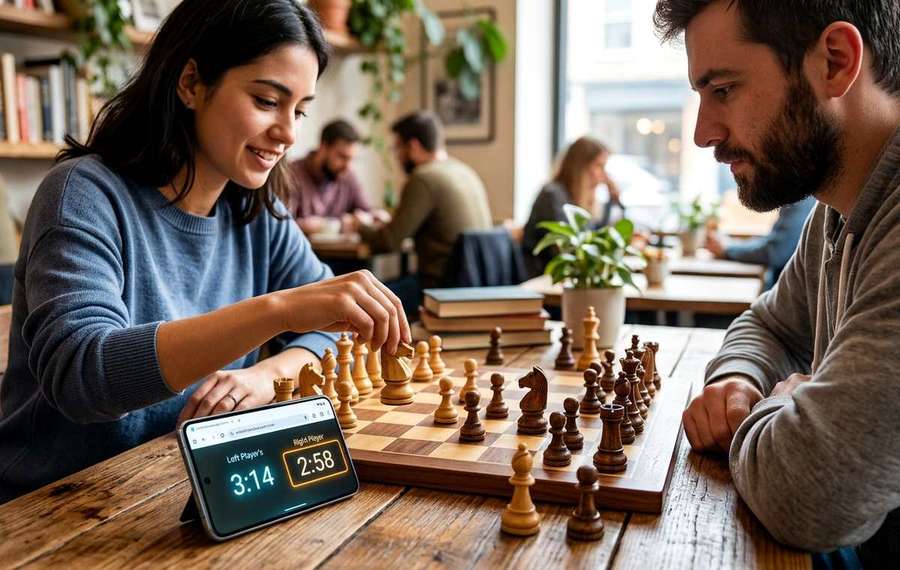
Summary of Turn Your Phone Into a Chess Clock Without Installing an App
- Use one phone as a two-player chess clock in your browser.
- Start with chess clock online , then choose “Local clock” or “Local chess clock” from its navigation.
- Before committing to a full game, find the settings, start, pause, and reset controls.
The board is ready. Your opponent is taking forever. Neither of you owns a chess clock. A phone can handle that job through its browser, giving each player a separate countdown on one shared screen. A little preparation makes the difference between a useful timer and a game interrupted by a locked display or an incoming call.
Your Phone-to-Clock Checklist
- Choose a local, two-player clock for one shared phone.
- Set matching time limits before the first move.
- Test screen orientation, tapping, and automatic locking.
- Silence interruptions and check your battery.
- Place the phone within comfortable reach of both players.
Open the Shared Clock Before Setting Up Your Game
Use your usual mobile browser. You do not need to install a separate app to run a browser-based chess timer. Keep the timer in its own tab so you can find it without searching through other pages.
Start with chess clock online, then choose “Local clock” or “Local chess clock” from its navigation. The linked destination opens an online game mode intended for separate screens. For a physical board and one phone, move into the shared local clock before continuing.
This distinction saves confusion. You want two large timer areas that players press after moving a piece. You do not need an invitation code or a second phone.
Before committing to a full game, find the settings, start, pause, and reset controls. Both players should know where those controls sit. Resetting a live game by accident is much more frustrating than spending a minute learning the screen.
Give Each Player a Separate Bank of Time
A chess clock runs one player's countdown at a time. Your time runs while you think. After completing your move, you press your timer area. Your countdown stops, and your opponent's begins.
For a relaxed first attempt, try 10 minutes each without a bonus. That gives you enough room to learn the tapping routine without making every hesitation feel expensive. Five minutes each can feel surprisingly tight when you are also getting used to a touchscreen.
The time allowance belongs to each player. Ten minutes each means up to roughly 20 minutes of countdown time across the game, before pauses. It does not mean both players share a single 10-minute pool.
Understand Increment Before Adding It
An increment adds a set number of seconds after a move. A setting written as 10+5 means each player starts with 10 minutes and receives five seconds per move.
A delay behaves differently. It allows a short period before the player's main time starts decreasing on a turn. You do not need either feature for your first game. If you choose one, confirm that both players understand it and that the correct bonus type appears in settings.
Run a Practice Turn Before the First Move
A brief rehearsal catches most setup problems. Do this while the board is still untouched, then reset the timers for the real game.
- Set the time control. Check the starting minutes and any bonus for both players.
- Assign the timer areas. Each player should know which part of the screen belongs to them.
- Start White's countdown. White moves first, so White's thinking time should run first.
- Practice switching turns. Tap the active player's area and check that only the other countdown continues.
- Test pause and resume. Confirm that you can stop play without clearing the remaining time.
- Reset and verify. Restore the agreed starting values before beginning the actual game.
During play, finish moving your piece before pressing your timer. Use one deliberate tap. Repeated tapping can cause confusion about whose clock is running, especially when both players are rushing.
Choose an Orientation Both Players Can Use
Try portrait and landscape before starting. The better choice depends on your phone's size, the browser layout, and where the device fits beside your board.
Landscape may offer broader tapping areas. Portrait may fit more comfortably on a narrow table. Judge the result by whether both players can read their time and reach their controls without stretching across the pieces.
The local clock includes a Rotate control. Test it to see how it changes the timer display. Rotating the clock layout and physically turning your phone are separate actions, and either may affect readability.
Once you find a comfortable arrangement, lock the phone's screen orientation. On iPhone, check Portrait Orientation Lock in Control Center. On Android, look for Auto-rotate or an orientation control in the settings panel. Available behavior varies by device, so confirm that the browser stays in the position you chose.
Try the clock's full-screen control if browser buttons take up useful space. Support can vary across mobile browsers. Check that the timer remains usable and that you know how to leave that view before play starts.
Keep the Display Awake and Interruptions Quiet
A sleeping screen takes away both your view of the time and your tapping controls. Do not assume that an active browser timer will keep the display awake throughout a match.
Check your phone's automatic locking setting. On iPhone, look under Settings, Display & Brightness, then Auto-Lock. On many Android phones, look under Display for Screen timeout. Settings search can help if your manufacturer uses different labels.
Choose a suitable timeout for the session, then leave the clock untouched long enough to test it. If your phone offers no sufficiently long option, check whether the timer keeps the display awake in your actual browser. Restore your usual locking preference after playing.
Enable Do Not Disturb or a suitable Focus mode before the first move. Check its exceptions, too. Allowed contacts, repeated calls, alarms, and other permitted interruptions may still get through, depending on your settings.
- Silence notification sounds and vibration. A buzzing phone can distract both players or shift on the table.
- Check scheduled alarms. Deal with any alarm likely to sound during the match.
- Keep the timer visible. Avoid switching tabs or opening another app during play.
- Agree on an interruption rule. Decide how you will handle calls, screen locks, or accidental exits.
Airplane mode is an option only after testing. Load the local clock first, enable airplane mode, and check that starting, switching, and pausing still work. Do not assume that a clock will remain available after a reload without a connection.
Make the Battery Last Through the Match
Check your charge before putting the phone beside the board. The display stays on for much of the game, so a nearly empty battery is a poor starting point.
Set brightness high enough for both players to read the numbers. Maximum brightness is rarely necessary indoors. If sunlight forces you to turn it up fully, moving the board into shade can improve visibility and make the phone more comfortable to use.
Battery-saving modes can change screen and background behavior. If you enable one, repeat your display and timer checks before starting. Keep the browser in the foreground throughout the game.
A charging cable can help during a longer session, but route it away from hands and pieces. Avoid a stretched cable that pulls the phone toward the edge. If the device becomes unusually warm, pause and move it away from direct sunlight before continuing.
Place the Phone Where Neither Player Has an Advantage
Set the phone beside the board, around the midpoint between the two players. Both should be able to press their timer area with a similar reach. Avoid placing it beside one player's elbow simply because that is where the owner usually keeps it.
Check glare from both seats. A display that looks clear from your side may reflect a ceiling light straight into your opponent's eyes. Shift the device or board until both players can read their remaining time.
A flat phone is often stable enough, especially in a case that grips the table. Test a few normal taps. If the device rocks on its camera bump or slides across the surface, change its position or use a thin, nonslip support.
Keep the timer clear of drinks, captured pieces, and the board's edge. Players should never need to reach across active pieces to stop their clock. Agree that a light tap is enough. A touchscreen does not need the force you might use on a physical clock button.
Handle Mistakes Without Losing the Game
If someone forgets to press their timer, their own time continues running. For a friendly first game, a verbal reminder can help establish the habit. Agree beforehand whether you will offer reminders throughout the match.
If a tap seems to fail, look at the active countdown before pressing again. An extra tap made in panic may switch the timer back. Dry fingers and a clean screen can also make touch input easier to manage.
If a call takes over the display or the screen locks, return to the timer and pause it as soon as you can. Check both remaining times together. Browser behavior during interruptions can vary, so avoid guessing that everything stopped automatically.
Only correct time if the clock offers an adjustment control and both players agree on the correction. If the lost time is uncertain, restarting a casual game may be the fairest choice. Do not press Reset while trying to find Pause.
Let the Phone Handle the Counting
One prepared phone can make a casual chess game feel more focused. Open the shared local clock, agree on the time control, test a few taps, and place the screen where both players can use it comfortably.
After the final move, stop the clock before reviewing the position. Restore your normal screen timeout and notification settings, then decide whether the next game needs more thinking time. Your phone has done its part when neither player needs to think about it.