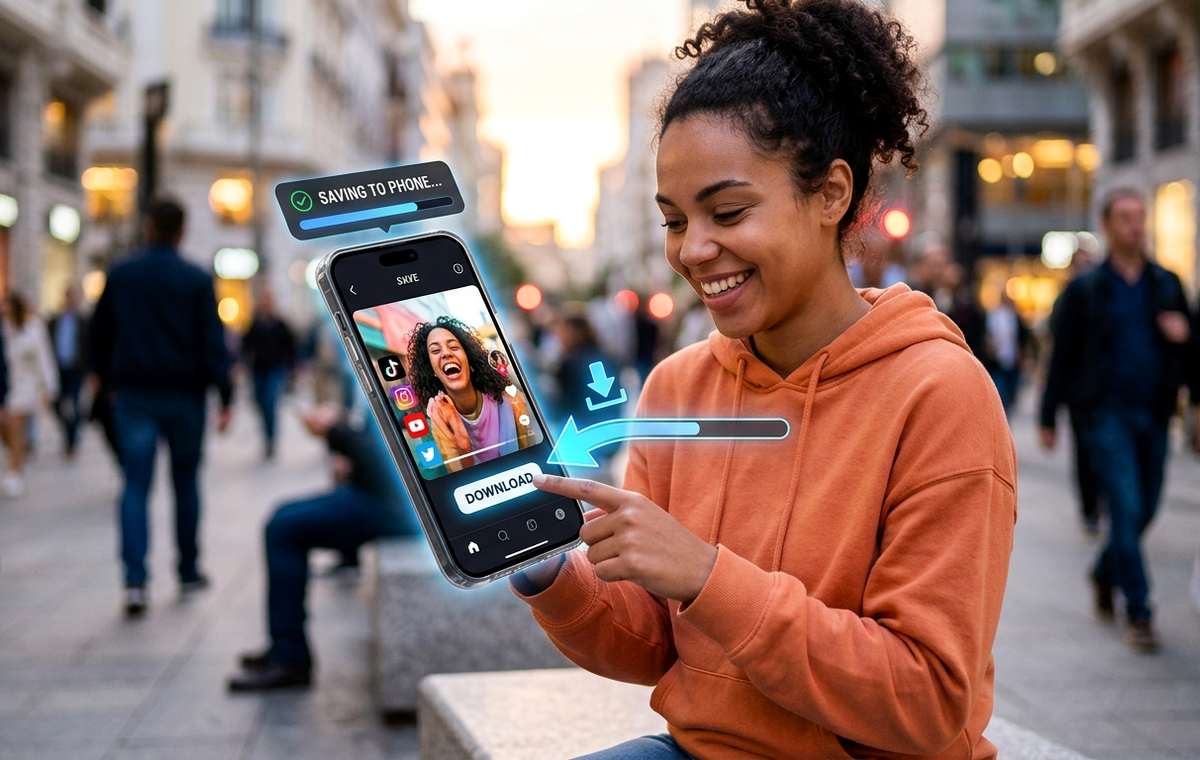
Summary of How to Save Videos From Any Social Platform Directly to Your Phone
- Learn how to save TikTok and Instagram videos directly to your phone in original quality, without screen-recording or losing resolution.
- Your favorite video shows up in your feed, you laugh, you share it, and then it disappears into the algorithm.
- Screen-recording has become the default workaround for a lot of people.
Your favorite video shows up in your feed, you laugh, you share it, and then it disappears into the algorithm. Three days later you cannot find it again. Saving social videos to your phone sounds simple but gets complicated fast, especially if you want the original quality and not a screen-recording that looks like it was filmed through a rain-streaked window. There is a better way, and once you know the workflow it takes less than a minute.
Key Points:
1. Screen-recording always degrades video quality, while a proper downloader preserves the original resolution and audio.
2. Most social platforms make in-app saving either absent or restricted, so third-party web tools are the practical choice.
3. The same paste-and-download workflow covers TikTok, Instagram Reels, and most other major platforms.
Why Screen-Recording Is Not the Answer
Screen-recording has become the default workaround for a lot of people. Every phone has it built in, no extra app required. But there are real costs to that shortcut.
First, quality drops. Screen recordings capture what your display renders, not the actual video file. Compression artifacts appear, especially on text overlays and fast motion. Audio can also drift slightly out of sync on longer clips.
Second, storage balloons. A raw screen recording at 60fps eats through space faster than the compressed video file the platform actually stored. You end up with a larger file that looks worse, which is the worst possible trade.
Third, you capture everything. Status bars, push notifications, and the platform player UI all show up in the recording. Editing that out takes time you probably do not want to spend.
A proper video downloader grabs the source file, the same one the platform encoded and served. No UI clutter, no quality penalty, no notification from your coworker appearing in the corner of your saved clip.
How the Major Platforms Handle Saving
What this means for Save Videos From Any Social Platform
Each platform takes a different approach, and none of them makes it easy to build a proper offline library.
TikTok has a built-in save option, but only when the creator enabled downloads. When they did not, the save button is simply gone. Even when it is available, the downloaded file includes a watermark burned directly into the video.
Instagram has no native download option at all for Reels. You can bookmark posts, but bookmarks only work while you have a connection. There is no built-in way to pull a Reel as a video file to your camera roll.
YouTube Shorts allows downloading inside the app only for Premium subscribers, and those downloaded clips are locked inside YouTube's own player, not your gallery.
Twitter/X and Facebook share a similar story. Some videos have a save option tied to your account, but it saves a reference link, not an actual file.
This is why third-party tools exist and why they have millions of regular users.
What to Look For in a Video Downloader
Not all downloaders are equal. Before picking one, check for these qualities:
- No watermark added by the downloader itself
- Support for multiple resolutions so you can choose quality
- A clean paste-and-go workflow with no account required
- An HTTPS connection on the site for basic security
- No requirement to install a browser extension or additional software
Web-based tools are the safest choice for casual use because nothing is installed on your device. You paste a link, choose your quality, and download. That is the entire workflow, and it works on any phone or tablet without compatibility concerns.
Saving TikTok Videos in Original Quality
TikTok is where most people hit the wall first. The platform has grown to over a billion active users and the content volume is enormous, which means the clips people want to keep are everywhere.
Here is the practical approach:
- Open TikTok and find the video you want to save.
- Tap the share icon, then tap "Copy link."
- Open your browser and use a TikTok video saver.
- Paste the link into the input field and tap download.
- Choose your preferred quality and save to your camera roll.
The whole process takes under a minute. You get the original encoded file, clean of any platform watermark, landing in your gallery just like a video you shot yourself.
This matters especially if you are a creator collecting reference clips. You need clean files for editing, not screen-recordings with overlaid playback controls eating into the frame.
The Same Workflow Works for Instagram Reels
Instagram has over two billion monthly active users, and Reels are now the dominant format on the platform. Yet there is still no native way to download a Reel to your device as a proper video file.
The paste-and-download approach works just as well here. Open the Reel, tap the three-dot menu, and copy the link. Then use an Instagram downloader the same way you used the TikTok tool: paste, select quality, save to your gallery.
This makes building an offline video library a realistic daily habit rather than something you do occasionally with screen-recording as a last resort. When the same workflow covers both platforms, you start doing it automatically.
A few things worth knowing about Reels specifically:
- Public Reels are generally downloadable with no additional steps
- Private accounts require you to be an approved follower and use the platform app to get the link
- Carousel posts that include a Reel may need the specific video URL, not the parent post URL
Organizing Your Offline Video Library
Once you start saving videos properly, the next challenge is keeping them organized. A camera roll full of random clips gets unwieldy fast.
A simple folder approach works well on both Android and iOS. Create albums by content type, such as tutorials, funny clips, recipes, or creative references. Add the source platform in the filename if your phone lets you rename files before saving. Do a monthly cleanup pass to delete anything you no longer actually need.
This is the difference between a hoard and a library. The extra thirty seconds of organization when you save a clip saves you ten minutes of searching later.
What About Other Platforms
The platforms covered above represent the bulk of short-form video consumption, but the same principles apply elsewhere. For Facebook videos, the paste-and-download approach works since Facebook uses a URL-based video system. Pinterest video pins and many other platforms follow the same pattern.
The underlying workflow is always identical: copy the video URL from the platform, paste into a web-based downloader, select quality, save. Once you know the pattern, it transfers across almost every platform you use regularly.
The Offline Playback Case
There is a practical argument for saving videos that goes beyond just keeping favorites.
If you commute by train or subway, you lose signal regularly. If you travel internationally on a local SIM with limited data, streaming burns through it fast. If you are managing screen time for kids, downloaded videos play without ads and without the related-video rabbit hole pulling attention in a dozen directions.
Saving a handful of clips before a long flight takes two minutes and means you have something to watch whether the airline Wi-Fi works or not. That is genuinely useful, not just a convenience.
Your Offline Video Library Starts With One Paste
The gap between "I wish I had saved that" and actually having a working offline video collection is smaller than it looks. The tools are free, the workflow takes less than a minute per clip, and the quality difference compared to screen-recording is immediately obvious the first time you compare them side by side.
Start with the next video that makes you laugh or teaches you something worth keeping. Copy the link, paste it, save it. Do that five times and it becomes automatic. Do it consistently for a month and you have a personal library of clips that load instantly, play without ads, and look exactly as sharp as they did in your feed the first time.
That is the habit worth building. No workarounds, no compromises on quality, just the video exactly as it was meant to look.