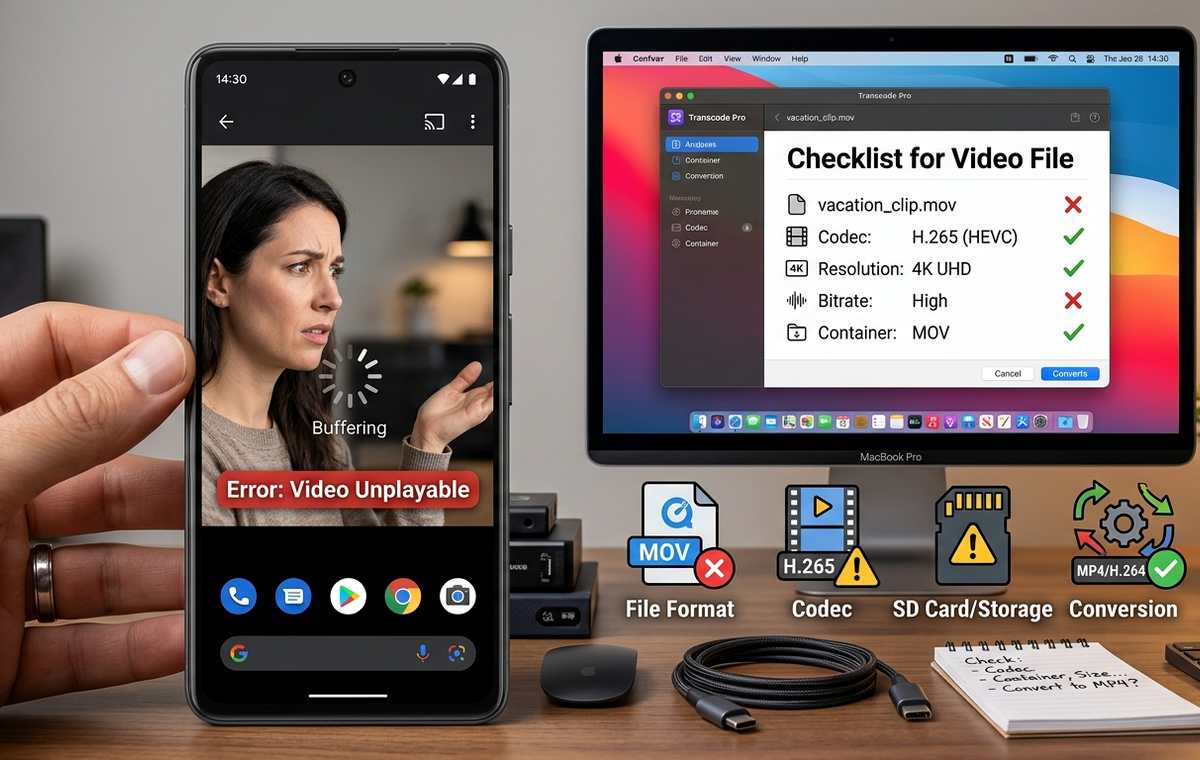
Summary of Why Videos Won’t Play on Android and What to Check Before Converting Them
- You saved a video for the flight, copied a family recording onto your phone, or downloaded a clip someone sent.
- Start with a video you know works, ideally a short clip recorded with your phone’s camera.
- If the camera clip plays normally, the problem probably concerns the downloaded video, its location, or its encoding.
You saved a video for the flight, copied a family recording onto your phone, or downloaded a clip someone sent. Then you tap play and get a black screen. Maybe the sound works. Maybe Android simply says it cannot open the file. Before spending time converting it, check whether your phone has the complete video and whether your player can access and decode it.
Check the File Before Changing the Format
- Confirm that the download or transfer finished and that the file is stored on your phone.
- Check playback permissions and try another player before assuming the video needs conversion.
- Download another copy if the file is incomplete. Convert a healthy file when compatibility is the actual problem.
Find Out Whether One Video or Every Video Fails
Start with a video you know works, ideally a short clip recorded with your phone’s camera. Open it in the same app that refuses to play your downloaded file.
If the camera clip plays normally, the problem probably concerns the downloaded video, its location, or its encoding. If several unrelated videos fail, look at the player itself. Close and reopen it, check for an update through your usual app store, and restart the phone.
Notice exactly what happens. A video that stops at the same moment every time points toward a file problem. A video missing from the player’s library may involve access or scanning. Sound without a picture suggests the player can read at least part of the file, but may struggle with its video track.
These clues help narrow the search. They do not prove the cause on their own.
Make Sure the Download or Transfer Actually Finished
A filename and thumbnail do not guarantee a complete video. Downloads can stop after a connection drops. A computer transfer can end early if the cable disconnects. A messaging app may show a preview before it finishes saving the full attachment.
Open your browser’s download history or the app that received the video. Check for a paused download, an error, or a progress indicator. Resume it if that option is available.
Next, open your file manager and view the video’s details. A file listed as zero bytes has no usable video content. An unexpectedly small file also deserves attention, although size alone cannot prove damage. Short clips and heavily compressed videos can be tiny.
If you copied the video from a computer, compare the exact file sizes on both devices. A smaller destination file suggests the transfer did not finish. Matching sizes are reassuring, but they do not guarantee that the original recording was healthy.
Check available storage before trying again. A nearly full phone may lack room to finish a download or create temporary files. Keep the original copy until you have confirmed that its replacement plays from beginning to end.
Check Where the Video Is Stored and Who Can Open It
A video visible in a cloud app may still need downloading. A streaming service’s offline download may also be protected and usable only inside that service’s app. Neither situation is fixed by changing the filename.
For an ordinary video file, open your file manager, find the actual download, and tap it. If Android offers an app chooser, select a video player. Opening the file this way can work when a player’s library has not yet picked it up.
If the player cannot see videos, open Settings, then Apps, choose the player, and check Permissions. Depending on your Android version and the app, the relevant entry may mention photos and videos, files, or storage. Menu names vary between phones.
Where selected-media access is available, make sure the troublesome video is included. Some players instead use Android’s file picker, which lets you grant access to a specific file without opening your entire media library. Grant the access needed for playback; unrelated permissions will not repair a video.
If the file is on a memory card or USB drive, copy it to internal storage and try again. Successful playback there suggests a problem with the original storage location, connection, or access. Check that copy before deleting anything from the card.
Understand Why an MP4 File Can Still Refuse to Play
The letters at the end of a filename describe its container. MP4 and MKV are containers that hold video, audio, and sometimes subtitles. Inside that container, separate encoding methods determine how the picture and sound are compressed.
Those encoding methods are called codecs. Two files ending in .mp4 can use different video codecs, audio codecs, or encoding settings. A player may handle one perfectly and reject the other.
Android’s official media format guidance describes platform support across codecs and containers, including version requirements and format limits. Actual playback also depends on the device and the app handling the file.
This explains several frustrating symptoms. Audio may play while the screen stays black if the video track is unsupported. A picture with no sound can point toward an audio compatibility issue. Very demanding resolution, frame rate, or encoding settings may cause stuttering even when the file opens.
Renaming movie.mkv to movie.mp4 does not change those tracks. It only changes the label. Keep the original extension while troubleshooting.
Try Another Player Before Converting the Video
At this stage, trying a different app is a useful test. VLC for Android is an alternative video player to try with a complete local file before committing to conversion. A different player may handle media that your gallery app cannot.
Open the same file in the second player. Test the beginning, move to the middle, and check a section near the end. Listen for missing sound and watch for freezes. A few seconds of successful playback may hide damage farther into the recording.
If the video works throughout, conversion may offer no benefit. You can keep using the player that handles it. If both apps fail at precisely the same point, investigate the file and its source before changing encoding settings.
Some players offer a hardware acceleration setting. Trying another available mode can help identify a decoder issue, especially with a black picture or visual corruption. Software decoding can demand more processing power and battery, though. Restore the original setting if playback becomes worse.
Use the Playback Symptoms to Choose Your Next Step
You do not need to try every possible fix. Match what you see to the most useful next check.
Playback Symptoms and Useful Next Checks
| What Happens | Possible Cause | What to Try |
|---|---|---|
| The player cannot find the file. | Restricted access, a cloud-only copy, or a library scanning issue. | Locate it in your file manager and open it directly. |
| Playback stops at the same point. | An incomplete or damaged file. | Compare with the source and obtain another copy. |
| Sound plays without a picture. | An unsupported video track or decoder problem. | Try another player and its available decoding settings. |
| The picture stutters badly. | Demanding encoding or slow storage. | Test internal storage, then consider a less demanding copy. |
| Only a streaming app’s offline download fails elsewhere. | App-specific protection or expired offline access. | Check the download and account status inside the original app. |
Download a Fresh Copy When the File Is Incomplete
Conversion cannot recreate footage that never arrived. If a download is unfinished, or a transfer produced a smaller file than the source, obtaining another copy is the better next step.
Use a stable connection and confirm there is enough free space. Save the replacement under a different filename where possible. That makes it easier to compare copies without overwriting the one you already have.
Ask the sender whether their original plays past the point where yours stops. If their copy also fails, another transfer of that same file will probably repeat the problem. Ask for a new export or the original recording instead.
For a subscription service’s offline content, use its own download controls. Removing and downloading that item again inside the app may resolve a failed save. A general video converter is not the right tool for that kind of protected download.
Convert a Healthy File When Compatibility Is the Problem
Conversion makes sense when the complete video plays on another device or in another app, but your preferred Android player still cannot handle it. It can also help when a high-resolution recording consistently overwhelms an older phone.
A broadly compatible starting point is an MP4 file with H.264 video and AAC audio. Choose a standard device preset if your converter offers one. For an older handset, 1080p at 30 frames per second can be a more manageable target than 4K footage with a high frame rate. Some devices may need a lower setting.
Keep the original and convert a short sample first. Check its picture, sound, timing, and subtitles on the phone before processing a long recording. Conversion can reduce quality, take considerable time, and leave out subtitle tracks if the export settings do not preserve them.
A container change without re-encoding, often called remuxing, may help if the tracks are compatible but the container is the obstacle. It will not fix an unsupported codec. For personal recordings, a trusted local conversion tool also avoids uploading private footage to an unfamiliar website.
Get Back to Watching With Fewer Unnecessary Changes
A video that refuses to play does not automatically need a new format. Confirm the file finished arriving, open it from its actual storage location, and check the player’s access. Then test another player.
Replace an incomplete copy. Convert a complete file when its encoding or playback demands cause the trouble. That order gives you a clearer answer while protecting the original video and saving time on changes that would never solve the problem.