Summary of How to Set Up Game Release Alerts on Your iPhone or Android
- Set up game launch alerts on iPhone and Android using app store wishlists, calendar reminders, and push notifications so you never miss a major release.
- Your Phone Can Be a Launch-Day Early Warning System , If You Configure It
- When a game has been announced but hasn't launched yet, the App Store often shows it as a pre-order or an upcoming release.
Missing a game launch hurts. You log on two days late, the hype has already peaked, and your friends are deep into a title you haven't even started downloading. The fix is already sitting in your pocket. Your iPhone or Android has everything needed to alert you the moment a major game goes live, and setting it up takes less time than watching a trailer.
Your Phone Can Be a Launch-Day Early Warning System , If You Configure It
- Both the iOS App Store and Google Play Store have native wishlist and pre-registration systems that fire push alerts on release day.
- Adding a manual calendar entry with two timed alerts is the most reliable backup, especially for titles not yet listed in the store.
- Notification permission settings are the most commonly skipped step, and ignoring them means your alerts may never reach your lock screen.
The Real Reason Most Gamers Miss Launch Day
It isn't lack of interest. It's lack of a system. Most people know a game is coming. They follow the coverage, watch the trailers, and tell themselves they'll remember. Then release day drops on a random Tuesday and real life takes over.
Your phone doesn't forget. It's always on, always with you, and already packed with reminder tools. The only thing missing is the five-minute setup that links those tools to the games you care about.
Using Your App Store to Wishlist and Track Upcoming Games
On iPhone and iPad
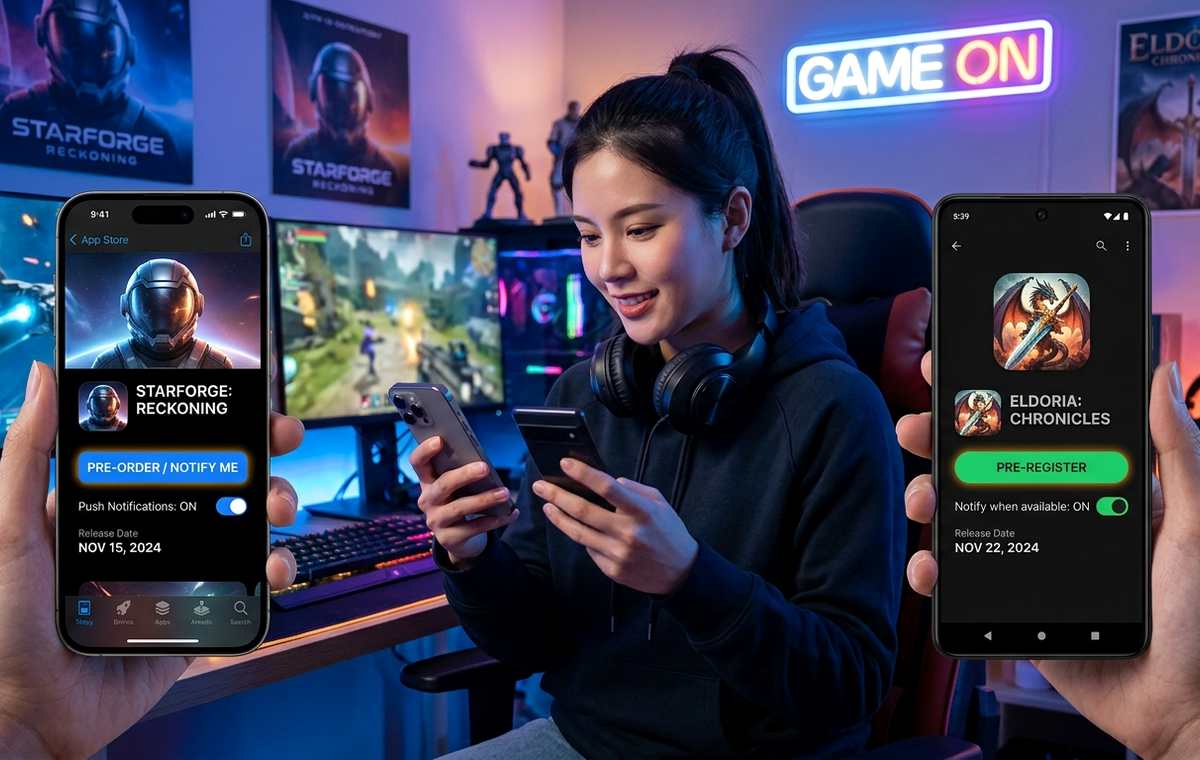
When a game has been announced but hasn't launched yet, the App Store often shows it as a pre-order or an upcoming release. Search for the game, open its product page, and look for a "Pre-Order" button or a "Notify Me" option. Tap either one. Apple will send a push notification on release day. If you pre-ordered, the game downloads automatically when it goes live.
Pre-order notifications run through the same push framework as any other app on your device.Understanding how that notification stack behaves is worth a read if alerts ever stop arriving as expected, because the solution is almost always a toggled setting rather than a missing feature.
On Android
Google Play handles this through its wishlist and pre-registration system. Find the game in the Play Store and tap the bookmark icon to add it to your wishlist. Google Play sends an alert when the title officially launches or when a price changes. For eligible titles, a "Pre-register" button works even better , it sends a direct release-day notification without any manual follow-up needed.
For finer control over what fires and when, adjusting wishlist notification preferences takes about two minutes inside the Play Store settings and gives you precise control over every alert type.
Big Launches Like GTA 6 Are Exactly Why This Setup Matters
It's easy to treat this as a nice-to-have and keep putting it off. But think about what's at stake with a release as massive as Grand Theft Auto 6. Millions of players are actively counting down, and within hours of launch, download servers will be under serious pressure. Being even a few hours late means slower speeds, longer queues, and watching your timeline fill up with spoilers.
Pulling up the confirmed GTA 6 release date right now and immediately plugging it into your calendar or app store wishlist is exactly the kind of preparation that pays off on the day. You won't need to check anything. Your phone will handle the reminder.
The same logic applies to every major mobile launch. A new season of Call of Duty Mobile, a Pokémon GO event with a hard start time, a Marvel Snap expansion, any title you're counting down to benefits from the same workflow.
Setting Up a Calendar Reminder That Will Actually Go Off
App store alerts are great when the game is already listed. For titles that haven't appeared in the store yet, or when you want a heads-up the night before so you can clear storage and charge your phone, a manual calendar entry is the most reliable option.
Here's a setup that works on both platforms:
- Open your native calendar app(Apple Calendar on iPhone, Google Calendar on Android).
- Create a new event on the confirmed launch date with a name specific enough to be useful, like "GTA 6 download day, charge phone first."
- Set a morning alert for around 7 or 8 AM on launch day so you see it before the day fills up.
- Add a second alert the evening before, which gives you time to free up storage and make sure you're on Wi-Fi.
- Paste the store link or any tracking URL into the event notes field so you can jump straight to the download with one tap.
- If the game requires a specific time-zone release, note the local time in the event title so there's no confusion.
Modern mobile games regularly exceed 5GB. You don't want a storage error message to be the first thing you see on launch morning. The night-before alert turns that from a scramble into a two-minute task.
Gaming Apps That Send Their Own Release-Day Alerts
If you follow a lot of titles and want a single hub for tracking launches across mobile and console, a dedicated tracking app makes sense. Several are well-maintained and genuinely useful:
- GameTrack: Available on iOS and Android. Add games to a personal list and receive notifications when release dates shift or confirm.
- RAWG Video Game Database: Large library, cross-platform tracking, and notification support for followed titles.
- IGN app: Pushes breaking launch-day news directly to your lock screen, useful for day-one patch notes and server status updates.
- YouTube: A surprisingly effective option. Subscribe to a game's official channel and turn on all notifications. Official accounts almost always post on release day within the first few hours.
- Reddit apps: Subscribing to a game's subreddit with notifications on means the community will flag launch issues, server outages, and download tips in real time.
None of these require unusual permissions. Once set up, they run in the background without any ongoing maintenance.
Managing Notification Settings So Alerts Don't Get Buried
This is the part most people skip, and it's the part that actually makes or breaks the system. A wishlist entry and a calendar reminder are both useless if the notification never reaches your lock screen.
On iPhone
Go to Settings, then Notifications, and find the App Store in the list. Make sure "Allow Notifications," "Lock Screen," and "Banners" are all enabled. Do the same for any third-party gaming apps you've installed. If you use Focus modes like Gaming Focus or Do Not Disturb, go into each mode's settings and confirm that your calendar alerts and App Store notifications appear in the allowed list. Focus modes are the silent killer of launch-day alerts.
Go to Settings, then Apps, then locate the Google Play Store. Tap Notifications and verify that wishlist and release alerts are switched on. On Android 13 and above, apps require explicit permission to send notifications, so any recently installed gaming apps need a manual grant. Check this before an anticipated launch, not during it.
Battery optimization settings on both platforms can delay or suppress push notifications when the phone enters aggressive power-saving mode. If you've ever noticed alerts arriving late, that's usually the reason. Exclude your calendar app and any release-tracker apps from battery optimization to keep them running at full speed.
App Store Alert Features: iOS vs. Android at a Glance
| Feature | iOS App Store | Google Play Store |
|---|---|---|
| Pre-order or pre-registration | Yes, with optional auto-download | Yes, via pre-registration button |
| Wishlist with release alerts | Limited, varies by title | Yes, includes price-drop alerts |
| Push notification on launch day | Yes, through pre-order or notify me | Yes, through pre-registration |
| Per-app notification granularity | Yes, by category and delivery style | Yes, by notification channel |
| Focus or Do Not Disturb exceptions | Yes, manually added per Focus mode | Yes, via priority exceptions |
| Download queuing ahead of launch | Yes, with pre-orders | Yes, with pre-registration on some titles |
When the Alert Fires, Do These Things Before You Tap Download
The notification comes in. The game is live. Resist the urge to just tap download immediately. A few quick checks will save real frustration.
First, verify available storage. A game that gets cut off at 80% because space ran out is genuinely painful. Second, confirm you're on Wi-Fi unless you have an unlimited data plan. Third, check that your payment method is valid if it's a paid title. Finally, look at whether any other large app updates are queued. Multiple simultaneous downloads compete for bandwidth and slow everything down.
None of this takes more than thirty seconds, but it separates a clean launch-day experience from a frustrating one.
Stop Relying on Memory and Let Your Phone Do the Work
The games you care about deserve better than a vague mental note. App store wishlists, calendar reminders with double alerts, push notification permissions checked properly, and one or two dedicated tracking apps working in the background. That's a complete system, and every piece of it is free and already available on your phone.
The biggest launches of any given year pull in millions of day-one players. Being in that group, storage cleared, phone charged, download already running, feels completely different from catching up two days later. Five minutes of setup today is all it takes to make that happen every single time.