Summary of How to Tell If an App Is Down or If Your Phone Is the Problem
- Learn how to quickly diagnose whether an app stopped working because of your phone or a server outage — with clear steps for both.
- When an app goes dark, start with your own connection before assuming the service is broken.
- The mistake most people make is skipping straight to the nuclear option.
Your favorite app just stopped loading. The screen spins. Nothing happens. You tap it again. Still nothing. Before you spend twenty minutes uninstalling and reinstalling software that had nothing wrong with it, there is a smarter way to figure out what is actually going on. Nine times out of ten, the answer comes down to two possible culprits: your phone or the service itself. Knowing which one it is changes everything about how you respond.
AT A GLANCE
When an app goes dark, start with your own connection before assuming the service is broken. Check Wi-Fi and cellular, force-close the app, and clear its cache. If everything looks fine on your end, run a server status check. Doing things in that order saves real time and tells you exactly where the problem lives. Once you know, the right fix becomes obvious.
When an App Stops Working Without Warning
What this means for Tell If App Is Down or
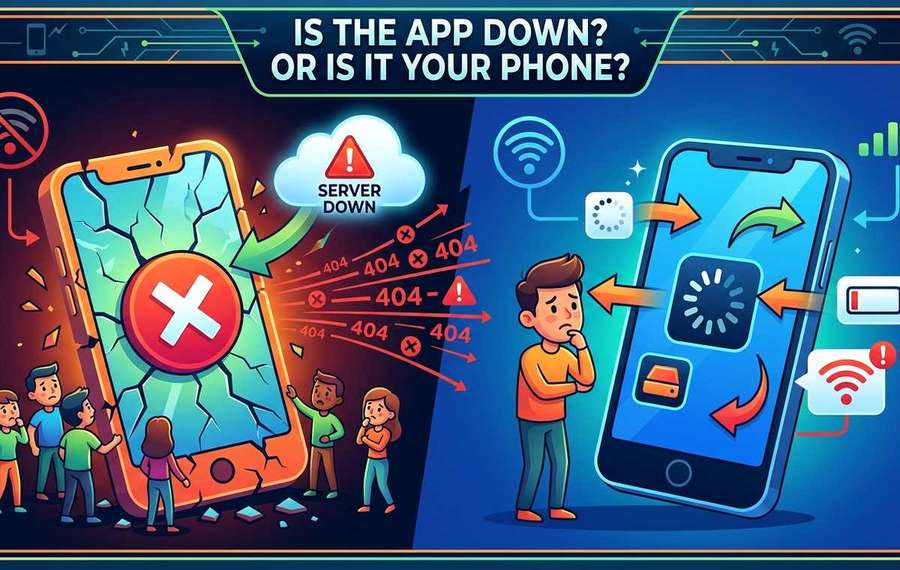
Apps break in two fundamentally different ways. The first type of failure lives on your device: a bad cache file, a dropped connection, or a software hiccup that a restart can fix in seconds. The second type lives elsewhere, on the company's servers, and there is nothing you can do to fix it because the fault is not yours to correct.
The mistake most people make is skipping straight to the nuclear option. They delete the app, reinstall it, and then discover the outage was on the provider's side the whole time. That wasted effort is completely avoidable. A short, logical sequence of checks takes less than five minutes and points you in exactly the right direction.
Your Connection Is the First Thing to Rule Out
Before touching anything app-related, confirm that your phone can actually reach the internet. A weak signal or a dropped Wi-Fi handshake can look identical to an app crash from where you are sitting. The app is not loading, but the reason has nothing to do with the app itself.
Run through these connection checks before moving on:
- Open a different app or website. Load your browser and visit any page. If that also fails, the problem is your connection, not the specific app in question.
- Toggle airplane mode on, wait five seconds, then turn it off. This forces your phone to re-register with the network and often clears a ghost connection instantly.
- Switch between Wi-Fi and mobile data. If the app loads on cellular but not Wi-Fi, your router is the likely culprit. If it fails on both, the app or service itself is suspect.
- Restart your router if you are at home. Unplug it for thirty seconds. Many connectivity issues clear as soon as the router refreshes its link to your ISP.
- Check your data allowance. If your carrier has throttled your mobile data for the month, some apps will stall or refuse to load while lighter pages still appear to work.
If your connection checks out and other apps load without issue, you can eliminate your network as the cause. That narrows the field significantly and points the finger at the app itself or the service behind it.
Restarting the App and Clearing Its Cache
App caches are small parcels of stored data that help apps load faster. But caches can get corrupted. When they do, an app can freeze, crash on launch, or simply refuse to display anything useful. Clearing the cache costs you nothing except a slightly slower first load afterward, and it fixes a surprisingly large number of app failures.
Follow these steps in order:
- Force-close the app completely. On iPhone, swipe up from the bottom and flick the app card away. On Android, tap the square overview button and swipe the app off the screen. Pressing the home button alone does not fully close the app.
- Wait ten seconds, then reopen it. This gives the app a clean restart rather than resuming from a potentially frozen state.
- On Android, clear the app cache. Go to Settings, then Apps, find the app in question, tap Storage, and select Clear Cache. This removes temporary data without deleting your login credentials or personal settings.
- On iPhone, offload the app. Go to Settings, then General, then iPhone Storage, find the app, and tap Offload App. This frees storage and clears local data while keeping the app icon and your account details intact.
- Relaunch and test. If the app loads normally, a corrupted cache was the problem. You are finished.
Still broken after all of that? You have now ruled out your network and ruled out local app data. The next question becomes unavoidable: is the service itself offline?
How to Check If the Problem Is on the Provider's End
This is where many people waste the most time. They keep rebooting their phone or fiddling with settings when the actual answer is that the company's servers are experiencing an outage. You cannot fix a server outage from your phone. But you can confirm one in about thirty seconds.
The fastest method is to check is it down right now for the service you are trying to reach. Type in the app name or website and you get a near-instant read on whether the problem is widespread or isolated to your device. If the tool confirms the service is down globally, you can stop troubleshooting your phone entirely. The fault is not yours.
Server outages tend to produce specific types of errors under the surface. When a server cannot respond properly, it returns what are called 5xx HTTP status codes, indicating the server received your request but failed to process it. These error types are formally defined in the HTTP specification maintained by the Internet Engineering Task Force and include codes like 500 (Internal Server Error) and 503 (Service Unavailable). You will rarely see these codes displayed inside a mobile app, but they are what is happening behind the scenes when a service goes completely dark.
Phone Issue vs. Service Outage: What Each Looks Like
| Signal | Points to Your Phone | Points to the Service |
|---|---|---|
| Other apps loading | Other apps also failing | Other apps load fine |
| Effect of restart | Restarts often help | Restarts make no difference |
| Desktop browser test | Desktop may load fine | Desktop version also fails |
| Error message type | Network or connection error | Server error or timeout |
| Social media reports | Nobody else mentioning it | Others reporting the same |
| Status page reading | Service status shows green | Status page shows an incident |
Reading the Signs Before You Run Any Diagnostic Tool
You do not always need a tool to get a rough read on what is happening. There are behavioral clues that point strongly in one direction before you open a single settings menu.
Try the same service from a completely different device, like a laptop or tablet connected to the same network. If your phone cannot load the app but your laptop loads the website without trouble, the fault is almost certainly on your phone's side. If both fail, the service is likely down.
Check Twitter or a platform like Reddit while the issue is happening. When a major service goes down, reports flood social media within minutes. Search the app name plus the word "down" and look at the timestamps on recent posts. If you see a wave of identical complaints from the past fifteen minutes, you have your answer before you run a single diagnostic.
Many apps and services maintain their own dedicated status pages. Platforms like Spotify, GitHub, and Slack publish real-time incident reports at a known URL. Bookmarking these pages for the services you depend on most is genuinely worth doing. The Android help center also maintains guidance on common app issues, which helps separate device-specific problems from connection or service failures.
What to Do While a Service Recovers
Once you have confirmed the outage is on the provider's side, the single smartest move is to stop trying to fix it yourself. Repeated refresh attempts, force-closes, and reinstalls will not speed up a server recovery by even one second. They will only wear out your patience.
A few practical steps make the wait less frustrating. Check the service's official social media account. Most major apps post updates during outages with rough recovery timelines. Enable push notifications for the app if you currently have them turned off. When the service restores, your phone will alert you automatically without you needing to keep checking manually.
Look for alternative ways to complete the task. If your banking app is down, the bank's website accessed through your mobile browser may still be fully operational. Desktop apps sometimes stay responsive even when mobile infrastructure is struggling. If the outage is affecting something time-sensitive, like a work communication tool or a payment platform, contact the service's support channel directly.
One thing worth doing during any extended outage: note the time it started and when it eventually resolved. If you pay for a service monthly and outages are becoming a pattern, that documentation supports a request for a credit or partial refund when you contact their billing team.
Knowing Where the Fault Lives Changes Everything
The next time an app refuses to load, resist the instinct to immediately blame your phone. Run through the connection check, clear the cache, and force-close the app. If those steps do not help, move the question upstream and ask whether the service is even reachable from anywhere in the world, not just from your device.
That one extra check takes under a minute. It could save you an hour of pointless troubleshooting on hardware and software that never had a problem to begin with. Your phone is not always at fault. And once you can confirm that with certainty, you can stop wasting energy on it and wait out the actual issue with calm instead of frustration.