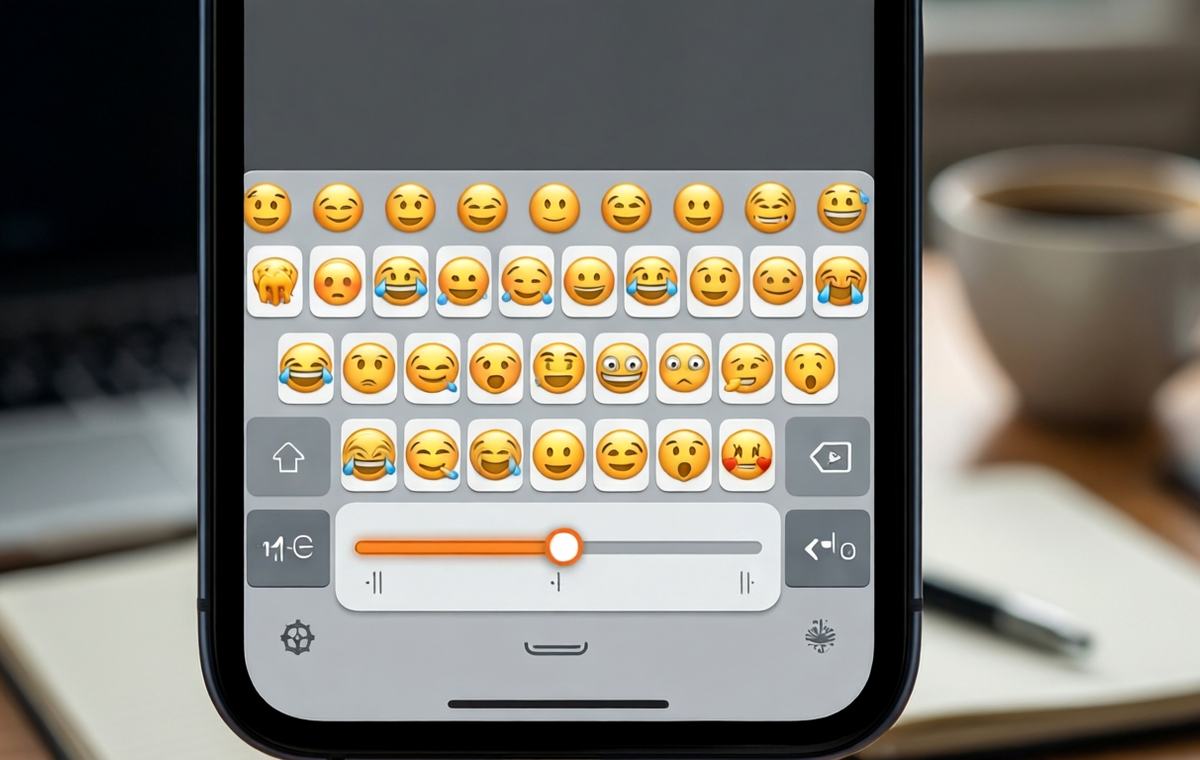
Summary of Gboard emoji size slider: Your keyboard now lets you see emoji your way
- Google is rolling out an emoji size slider in the latest Gboard beta (v18.0.3.9) that lets you make emoji bigger or smaller.
- Adjusting the slider also changes how many emoji appear per row, from a maximum of nine to a minimum of five.
- You can find the new slider under Settings > Preferences > Appearance, just below the Font size option.
- The setting does not affect the Emoji Kitchen row at the top of the keyboard.
- The feature is useful for people with poor eyesight and for anyone who wants a more customized typing experience.
A slider that changes more than size
If you have ever squinted at a tiny smiley face or felt that the emoji on your keyboard are too big, Google may have just fixed your problem. The company is now rolling out a new emoji size slider in the latest beta version of Gboard, its popular Android keyboard app.
The feature lets you adjust the size of the emoji you see when you tap the emoji key. As you slide between smaller and larger sizes, the number of emoji shown in each row changes automatically. It is a practical update that gives you more control over something you likely use several times a day.
Right now, the slider is appearing in Gboard beta version 18.0.3.9. Early testers have spotted it on devices such as the OnePlus 13R and the OPPO Reno 16 Pro, and it is also working on a Pixel 10 Pro. Google has not yet said when the feature will roll out to the stable version of Gboard, but those who are on the beta channel can start experimenting with it today.
How the emoji size slider works
What this means for Gboard emoji size slider
At first glance, this might seem like a simple zoom control. But the emoji slider actually gives you two changes at once: bigger (or smaller) emoji, and fewer (or more) emoji per row.
When you set the slider to the smallest size, you will see nine emoji across one row. That is the default for many users. Move the slider toward the maximum size, and the row count drops to just five emoji. In between, you get options like eight, seven, and six, with some "plus" increments that make the emoji slightly larger without changing the row count.
On a Pixel 10 Pro, the available increments are: 9, 8, 8+, 7, 7+, 6, and 5. The "plus" choices are a neat middle ground — they give you a bit more detail without forcing you to scroll horizontally as often.
Where to find the new setting
Where do you find this new control? Open the Gboard settings menu, then tap Preferences and go to Appearance. The emoji slider sits right underneath the Font size setting. A preview window just above the slider shows how your emoji will look before you commit to a new size. you should note that the slider only affects the main emoji grid. It does not change the Emoji Kitchen row at the top of the keyboard, which remains sized independently. So if you like making custom emoji mashups in Emoji Kitchen, those will still appear at their usual size.
Why this matters for everyday typing
This feature is especially welcome for people who have trouble seeing small details on a phone screen. By making emoji larger, you can more easily tell the difference between a grinning face and a winking face, for example.
But even if your eyesight is fine, the slider can improve your workflow. If you send a lot of emoji-heavy messages, shrinking the emoji down to nine per row might help you pick the right one faster without swiping through multiple pages. On the flip side, people who only use a handful of favorite emoji might prefer the giant five-per-row view, which makes each character easier to tap accurately.
More Gboard improvements on the way
The emoji slider is not the only experimental feature Google has been testing in Gboard recently. Over the past few weeks, the beta channel has also seen a clipboard duration slider, a quicker way to insert copied text, and a better method for dismissing keyboard suggestions.
Google continues to refine its keyboard with small, thoughtful adjustments rather than major overhauls. The emoji size slider fits that pattern. It is a straightforward tool that solves a real, common annoyance — and that is often the kind of update people appreciate most.
When will you get the emoji slider?
If you are already on the Gboard beta, check your Settings > Preferences > Appearance to see if the emoji slider has appeared. If you are not on the beta but want early access, you can join the Gboard beta program through the Google Play Store. Keep in mind that beta software may have occasional bugs.
For the rest of us, the slider should reach the stable version of Gboard in the coming weeks. Until then, the change gives you something to look forward to: a keyboard that finally lets you see your favorite emoji the way you want to see them.
Looking for more tips on getting the most out of your phone? Check out our mobile guides or browse the latest mobile news.